Send your leads anywhere, automatically, with webhooks
Instead of downloading a file and uploading it again, have the tools you already use told the moment a list is ready, with links to collect it. No code required.
By Aiden · Updated · 6 min read
Downloading a list and importing it somewhere else works, but it is a manual step you have to remember every time. A webhook removes that step. When a search finishes, we tell another tool right away, your CRM, Zapier, Make, n8n, or your own server, and hand it secure links to collect the finished files. You set it up once, and from then on your leads arrive where you want them without you lifting a finger.
What a webhook actually is
A webhook is just a web address that another tool gives you so it can receive data automatically. Think of it like a forwarding address for your results. You paste that address into your settings here, and when a list is ready, we send that address a notification with secure links to your files. Most popular tools, including Zapier, Make, n8n, and almost every modern CRM, can hand you one of these addresses in a few clicks. You never have to write any code.
Setting one up
Open your account settings and go to the Webhooks page. You will see a field to paste a destination address and an optional name so you can tell your destinations apart later. Get the address from the tool you want to send to, paste it in, and save. That is the whole setup.
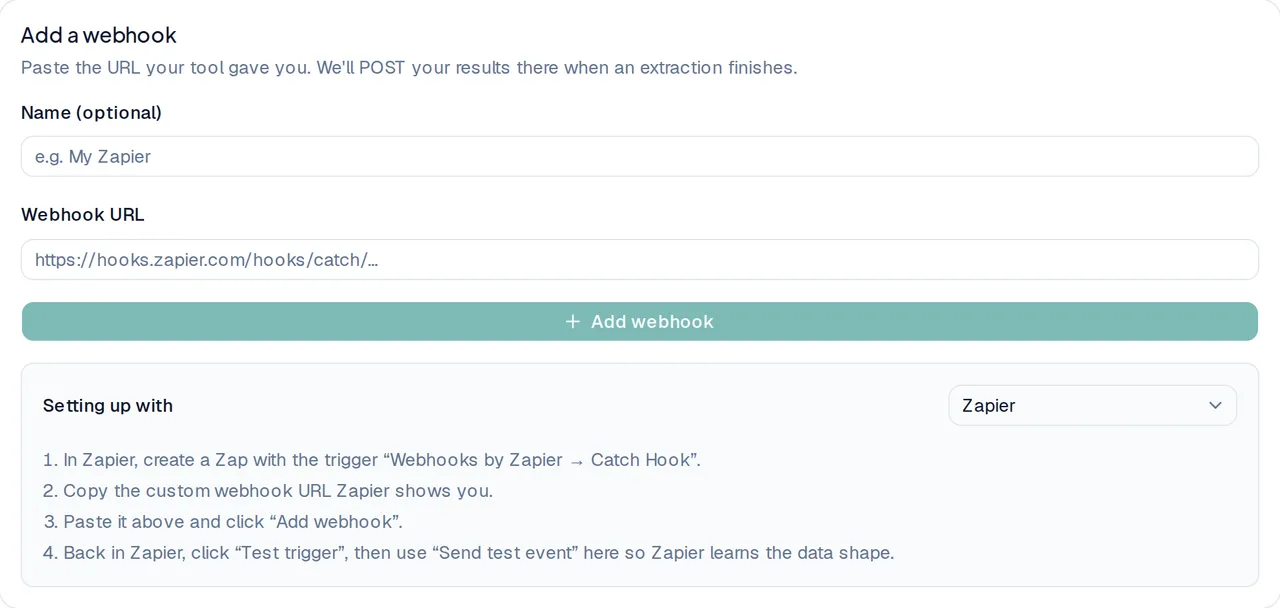
The exact steps depend on which tool you are connecting. Here is the short version for the most common ones.
- Zapier: create a Zap with the trigger "Webhooks by Zapier, Catch Hook", copy the custom address it shows you, and paste it here.
- Make: add a "Custom webhook" module, click Add, then copy the address Make generates and paste it here.
- n8n: add a Webhook node set to POST, copy its Production URL, and paste it here. Remember to activate the workflow.
- Your own server: paste any secure (HTTPS) address that can receive a POST request. We sign every delivery so you can confirm it really came from us.
Once a destination is saved, use the Send test event button next to it. That fires a sample delivery so the other tool can learn the shape of the data and so you can confirm everything is wired up before your first real list runs.
Every search, or only the ones you pick
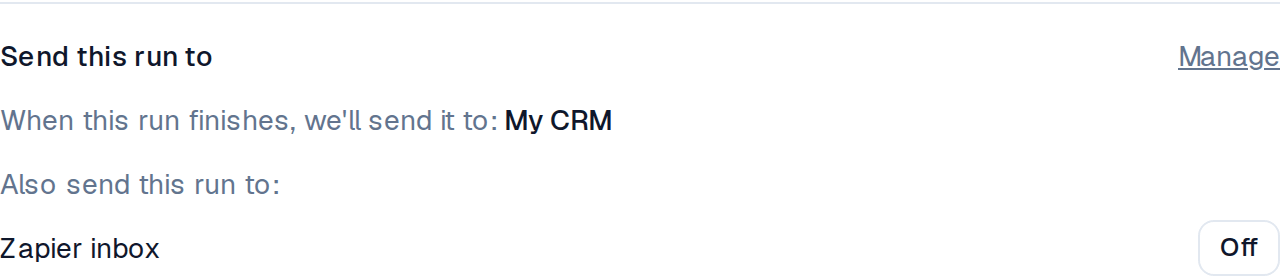
Each destination has an Auto-send setting with two choices. Set it to Every run and we send every finished list there automatically, hands-off. Set it to Only runs I pick and that destination becomes optional, so it stays quiet until you choose it for a specific search. Use Every run for a destination you always want, like your main CRM, and Only runs I pick for one you reach for occasionally.

Choosing destinations for a single search
When you start a search, the form shows a Send this run to section listing your destinations. Anything set to Every run is shown there as a reminder, so you always know where the results are headed. Anything set to Only runs I pick appears as a simple on or off switch you flip for that search alone. Leave them all off and the list is just yours to download as usual.
Knowing the delivery is really from us
When you add a destination, we show you a signing secret once. Save it somewhere safe, because we cannot show it again. Your tool, or your developer, uses that secret to confirm each incoming delivery genuinely came from us and was not tampered with on the way. If you ever think a secret has leaked, click Rotate to swap it for a fresh one. For no-code tools like Zapier and Make, you usually do not need to touch the secret at all; it is there for when you want the extra assurance.
Pausing or turning a destination off
Webhooks are always under your control. Pause a destination to stop deliveries without losing its setup, then Resume it whenever you like. Switch its Auto-send to Only runs I pick to keep it but stop the automatic sends. Or Remove it entirely if you are done with it; you can always add it back later, though it will get a new signing secret. Turning every destination off, or having none at all, simply means your lists stay as downloads, exactly as they were before.
That is all there is to it. Connect a tool once, decide whether it hears about every list or only the ones you choose, and your leads reach your workflow without a manual download. When you are ready, run a search and pick where the results should land. Pull your first list.
Questions, answered
- Do I need to know how to code to use webhooks?
- No. For tools like Zapier, Make, n8n, and most CRMs, you copy an address they give you and paste it into your settings here. There is no code to write. A signing secret is provided if your tool or developer wants to verify deliveries, but no-code tools rarely need it.
- Which tools can I send my leads to?
- Anything that can receive a web request: Zapier, Make, n8n, most CRMs, and your own server. If a tool gives you a webhook address (sometimes called a hook URL or catch hook), you can paste it in and it will be told about every finished list automatically, with links to collect it.
- Can I send results to my CRM only for some searches?
- Yes. Set a destination's Auto-send to "Only runs I pick" and it stays optional. On the search form you flip it on for the searches you want and leave it off for the rest. A destination set to "Every run" is told about every finished list automatically.
- How do I stop sending results to a destination?
- Pause it to stop deliveries while keeping its setup, switch its Auto-send to "Only runs I pick" to stop the automatic sends, or remove it entirely. With no active destinations, your lists simply stay as downloads.
- What is the signing secret for?
- It lets you confirm a delivery genuinely came from us and was not altered in transit. We show it once when you add a destination, so save it somewhere safe. You can rotate it for a fresh one at any time. No-code tools usually handle verification for you.
- What information does each webhook send?
- Each delivery tells your tool the search finished and where to collect the results. It carries the job reference, how many businesses came back, how many credits the run used, when it finished, and a secure download link for each file the run produced, in CSV, Excel, and JSON, plus the separate reviews files when you pulled reviews. Your CRM or automation tool follows the JSON link to read the full list, so the businesses land ready to map into your own fields.
Build your list
Pull a targeted list of local businesses, and pay only for contactable results.
Get started